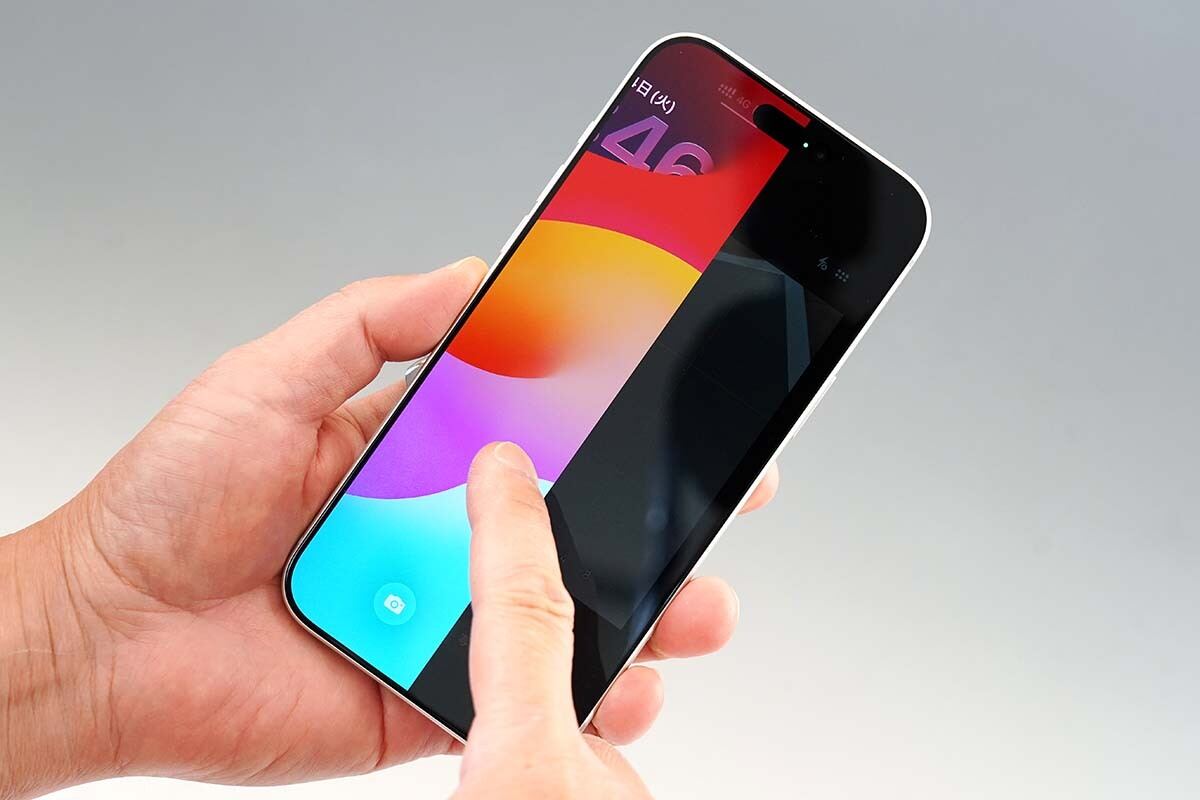
Apple has released iOS 26.1 for iPhone, and while the update includes a handful of convenience upgrades and quality-of-life refinements, one small setting may prove to be the most meaningful in day-to-day life: you can now disable the Lock Screen swipe gesture that opens the Camera app. It’s a modest change with outsized impact, designed to prevent those awkward and potentially problematic moments when the camera springs to life in a crowd—on a train, in a classroom, or in a busy office—simply because your thumb brushed the screen.
What’s new in iOS 26.1
Headline changes in iOS 26.1 include a new option to turn off the left-swipe-to-camera gesture on the Lock Screen, expanded language support for live translation with AirPods—now including Japanese—an accessibility-minded “tint adjustment” for Liquid Glass to reduce transparency, swipe navigation for Apple Music’s mini player, and a redesigned alarm dismissal that replaces a tap-to-stop button with a deliberate slide gesture to help curb accidental snoozing and oversleeping. Apple notes that certain Apple Intelligence features remain limited to eligible devices, but the broader update targets a wide range of iPhones, with support starting from iPhone 11 and iPhone SE (2nd generation) onward. If you’re on a compatible device, this is a straightforward, worthwhile update to install.
The camera that opens too easily—now under your control
For years, iPhone users could open the camera from the Lock Screen in two quick ways: tapping the camera button or swiping left across the screen. It’s ideal for catching a fleeting moment, but the same speed is a liability when your phone is in hand and you’re navigating a crowd or adjusting your grip. Unintentional camera launches aren’t just mildly annoying—they can be socially fraught. In public spaces, an open camera can be misconstrued, and in sensitive settings like schools or workplaces, even an accidental launch can attract the wrong kind of attention.
Previously, the only reliable workaround was to use Screen Time to restrict the Camera app. That solution was blunt: it disabled camera access entirely, removing the Camera icon from the Home Screen and cutting off legitimate use cases. iOS 26.1 introduces a more precise control inside Settings that solves the problem without collateral damage. In the Settings app, a new option appears under Camera: “Open Camera with Lock Screen Swipe.” Turn this off and the left-swipe gesture on the Lock Screen is disabled, while the Camera app remains on your Home Screen as usual. It’s a simple, thoughtful fix that allows quick photography when you want it—and fewer false positives when you don’t.
How to disable the Lock Screen camera swipe
To change the behavior: open Settings, tap Camera, and toggle off “Open Camera with Lock Screen Swipe.” That’s it. Your Camera app stays intact across the system, but the Lock Screen left-swipe no longer opens it. For users who crave fast access when it matters, the benefit is clear: you keep intentional speed without accidental exposure.
Why this small switch matters
This is a textbook example of Apple adding just enough friction in the right place. The camera is one of the iPhone’s most important apps, but a hair-trigger launch can compromise privacy and comfort—yours and others’. The new toggle reduces the likelihood of misinterpretation in crowded spaces and gives users who work in regulated environments, schools, or public-facing roles a way to align their devices with situational etiquette. It also highlights a broader trend in iOS: more granular control over micro-interactions. The company isn’t removing the convenience; it’s letting you decide where convenience ends and caution begins.
AirPods live translation now supports Japanese
iOS 26.1 broadens the capabilities of live translation when used with AirPods by adding support for Japanese. This is a particularly meaningful addition for travelers and business users moving between English- and Japanese-speaking contexts, as well as for learners. In practical terms, live translation with AirPods is designed for low-friction, in-ear comprehension: you speak, your counterpart speaks, and translations are surfaced seamlessly. With Japanese in the mix, Apple pushes the feature into a region where demand for high-quality, latency-sensitive translation is especially high. Availability and performance can vary by region and device, but for those on supported hardware, the expansion significantly increases real-world usefulness.
Liquid Glass gets “tint adjustment” to improve readability
Liquid Glass—the translucent visual style used throughout the system—can be a double-edged sword. It looks polished, but legibility can suffer when backgrounds are too transparent. The new “tint adjustment” option lets you rein in transparency for better contrast. The result is a cleaner hierarchy that keeps content readable without abandoning the aesthetic. It’s a small but welcome nod to accessibility, helping users who prefer crisper separation between foreground text and blurred backgrounds, especially in bright or busy environments.
Apple Music mini player: swipe to skip
When the Apple Music mini player is visible, iOS 26.1 adds a familiar, fast gesture: swipe left or right on the mini player to move to the previous or next track. It’s a small quality-of-life tweak that favors one-handed use and reduces the need to dive into the full player—ideal when you’re on the go and want to keep your focus elsewhere.
Alarms now slide to stop
Another micro-interaction gets a rethink: turning off alarms now relies on a slide gesture instead of a single button press. The intention is clear—make it harder to silence an alarm by accident, especially when bleary-eyed. The change adds a beat of intentionality without making the process cumbersome, which could translate into fewer missed wake-ups and meetings.
Who can update and how to prepare
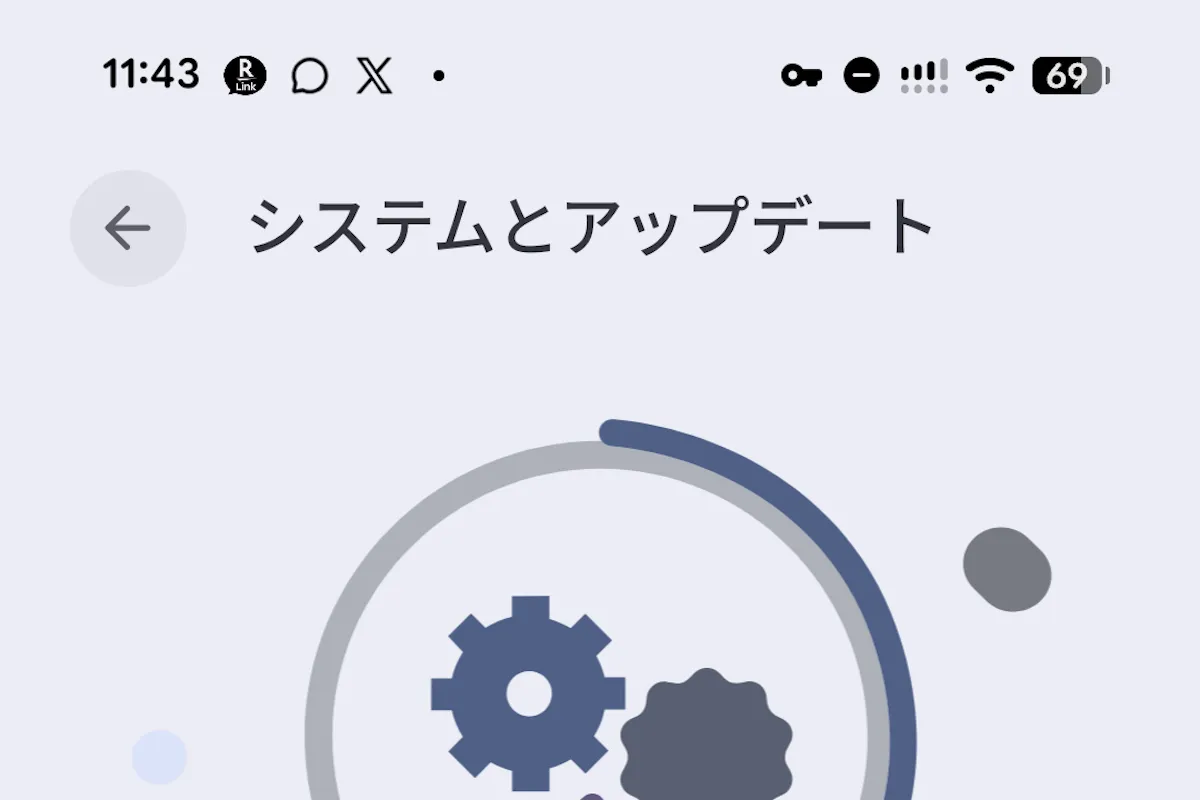
iOS 26.1 supports iPhone 11 and iPhone SE (2nd generation) and later models. As always, updating is simple: go to Settings, then General, then Software Update. Before you start, consider a quick device backup, ensure you have sufficient battery (or connect to power), and check that you have enough free storage. While most users will experience a smooth rollout, taking these basic steps helps avoid hiccups.
Early take: small switches, big impact
iOS 26.1 won’t grab headlines for sweeping visual changes, but it lands where it counts: in the everyday interactions that make an iPhone feel intuitive. The Lock Screen camera toggle addresses a long-standing pain point with surgical precision, the translation and music tweaks accelerate common tasks, and the alarm and Liquid Glass changes speak to a renewed emphasis on clarity and intention. Together, they suggest Apple is continuing to fine-tune the edges of the experience—reducing accidental actions while keeping speed at your fingertips. If you’ve ever cringed as your camera popped open at the worst possible moment, this update alone earns its download.